
Installing the Steam snap
Installing Steam using different methods, configuring snap connections, and uninstalling the snap.
Install via the App Center
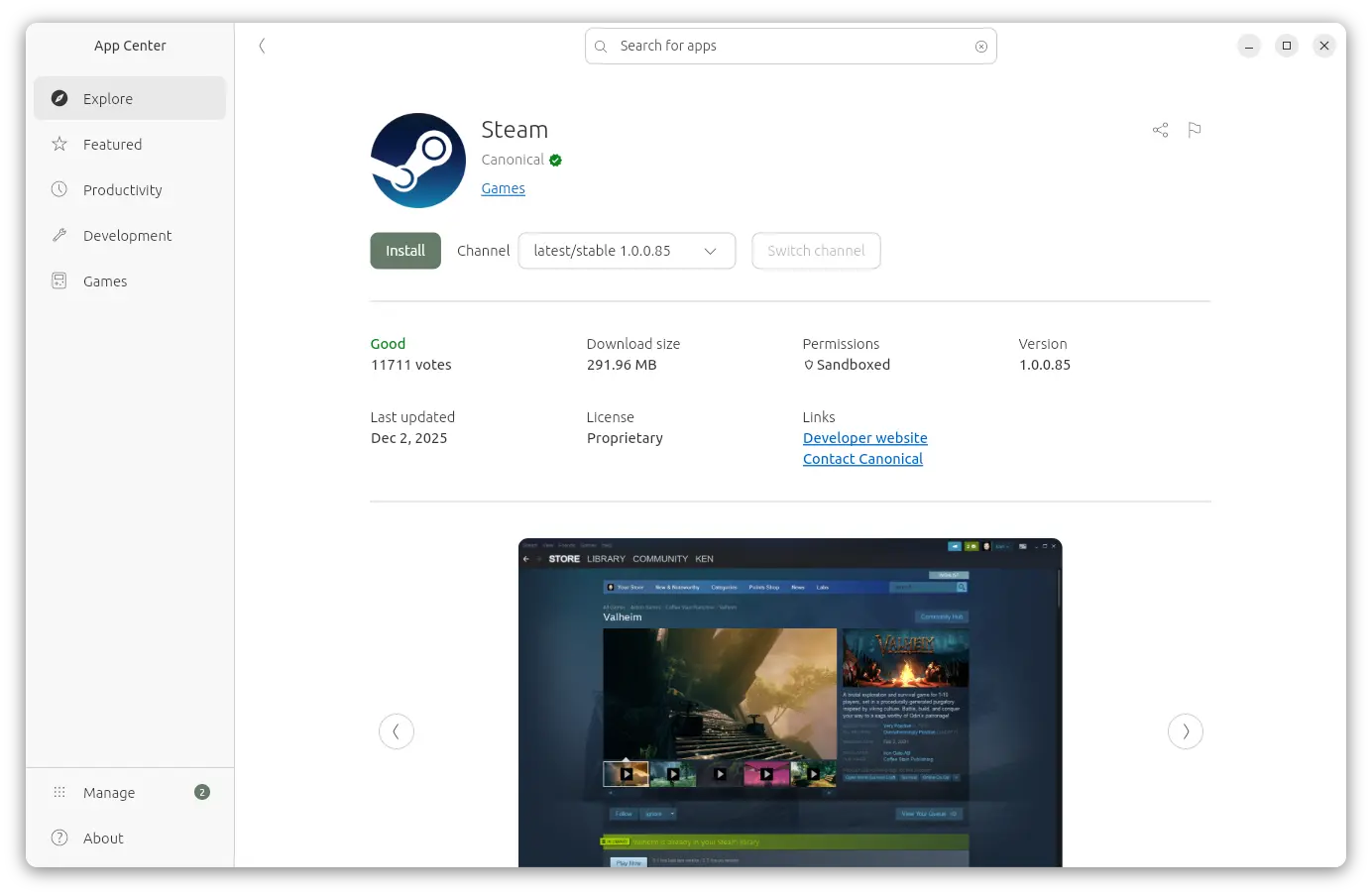
To install Steam using the graphical App Center, press the super key, search for “app center”, and open it.
Find “Steam” in the App Center and click Install.

Install via command-line
To install Steam using the terminal, run the following command:
snap install steam
Configure snap connections
Most snap connections that you need will be automatically connected for you.
It is recommended (but not required) to connect the following manually:
system-observe: for system compatibilityhardware-observe: also for better compatibilityaudio-record: if you use any of Steam’s voice chat or recording features
To do so, run the following commands:
snap connect steam:system-observe
snap connect steam:hardware-observe
snap connect steam:audio-record
For more information on the snap connections, run
snap connections steam
Uninstall the Steam snap
Snap automatically creates a data snapshot when a snap is removed. They can be incredibly large and take a long time to create, since they also contain your Steam library.
It is therefore recommended to disable snapshots when uninstalling Steam.
To remove Steam and its data without creating a snapshot, run
snap remove --purge steam
To disable snapshots for all snaps, run
snap set system snapshots.automatic.retention=no
Then, Steam can be removed with
snap remove steam