
Get started
This guide describes how you can get started with Charmed Kubeflow (CKF), from deploying to accessing it. It is intended for system administrators and end users.
CKF provides a simple, out-of-the-box way to deploy Kubeflow. It sets default configurations, while still providing flexibility to configure it as you like.
Note
This tutorial deploys the latest supported version of CKF. For using other versions, check Supported versions for compatibility with Kubernetes and Juju.
Requirements
Ubuntu 22.04 or later.
A host machine with at least a 4-core CPU processor, 32GB RAM and 50GB of disk space available.
Install and configure dependencies
CKF relies on:
Kubernetes (K8s). This tutorial uses Canonical K8s, an enterprise-ready Kubernetes distribution.
A software orchestration engine. This tutorial uses Juju to deploy and manage the Kubeflow components.
Infrastructure as Code. This tutorial uses Terraform to provision the CKF deployment.
Install required tools
Install the necessary packages and tools for the deployment:
sudo apt-get install -yqq pipx git
pipx ensurepath
export PATH="$HOME/.local/bin:$PATH"
Install Python package managers that will be used for managing dependencies:
pipx install tox
pipx install poetry
Install Terraform, Concierge, and Juju using snap:
sudo snap install terraform --channel latest/stable --classic
sudo snap install concierge --classic
sudo snap install juju --channel 3.6/stable --classic
Note
This tutorial uses Juju 3.6. For using other versions, check Supported versions for compatibility with K8s.
Configure the environment with Concierge
Concierge automates the setup of Kubernetes and Juju for local development.
Create a configuration file named concierge.yaml with the following content:
juju:
  channel: 3.6/stable
  agent-version: 3.6.14
  model-defaults:
    logging-config: <root>=INFO; unit=DEBUG

providers:
  k8s:
    enable: true
    bootstrap: true
    channel: 1.32-classic/stable
    features:
      local-storage:
      load-balancer:
        enabled: true
        l2-mode: true
        cidrs: 10.64.140.43/32
    bootstrap-constraints:
      root-disk: 4G

  lxd:
    enable: true
    bootstrap: false
    channel: latest/stable

host:
  snaps:
    charmcraft:
      channel: 3.x/stable
This configuration sets up:
Juju 3.6 with specific agent version
Canonical K8s 1.32 with local storage and load balancer features
LXD for containerization support
Charmcraft for charm development
Warning
The cidrs value (10.64.140.43/32) specifies the IP address that will be assigned to the load balancer.
You may need to adjust this value based on your network configuration, by changing the cidrs value under
the load-balancer configuration for k8s.
Run Concierge to prepare the environment:
sudo concierge prepare --trace
Note
The preparation may take several minutes to complete as it installs and configures Canonical K8s and bootstraps the Juju controller.
Verify the Juju controller is running:
juju status
Deploy CKF with Terraform
Clone the Charmed Kubeflow solutions repository:
git clone https://github.com/canonical/charmed-kubeflow-solutions.git
cd charmed-kubeflow-solutions/
Switch to the 1.11 track:
git checkout track/1.11
Navigate to the Kubeflow Terraform module:
cd modules/kubeflow
Initialize Terraform to download the required providers and modules:
terraform init
Deploy CKF using Terraform:
terraform apply -auto-approve
Note
The deployment may take 15-30 minutes to complete. Terraform will provision all the necessary Kubeflow components and configure them automatically.
Monitor the deployment status:
juju status
CKF is ready when all the applications and units are in active status.
During the configuration process, some of the components may momentarily change to a blocked or error state.
This is an expected behaviour that should resolve as the bundle configures itself.
You can also check the Kubernetes services in the kubeflow namespace:
kubectl get svc -n kubeflow
Access your deployment
You can interact with CKF using a dashboard, accessed through an IP address.
Configure dashboard access
To enable authentication for the dashboard, set a username and password as follows:
juju config dex-auth static-username=admin
juju config dex-auth static-password=admin
Access the dashboard
To check the IP address associated with your deployment, run the following command:
kubectl get svc -n kubeflow istio-ingressgateway-workload -o jsonpath='{.status.loadBalancer.ingress[0].ip}'
Note
You should see an output like this: 10.64.140.43, which is the IP address configured in the Concierge setup.
If the output shows a different IP, use that IP for the rest of this tutorial.
To access your deployment, open a browser and visit the dashboard IP. You should see the login page where you need to enter the credentials previously set up.
Note
Enter the username in the “Email Address” field.
You should now see the welcome page:
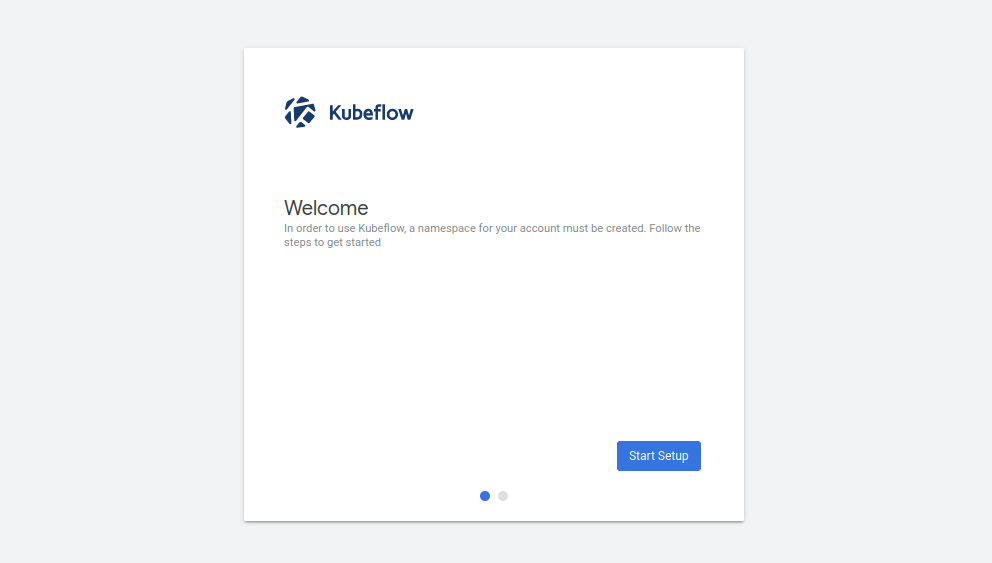
Get started by clicking on Start Setup.
Next, create a namespace for keeping all files and settings within a single location:
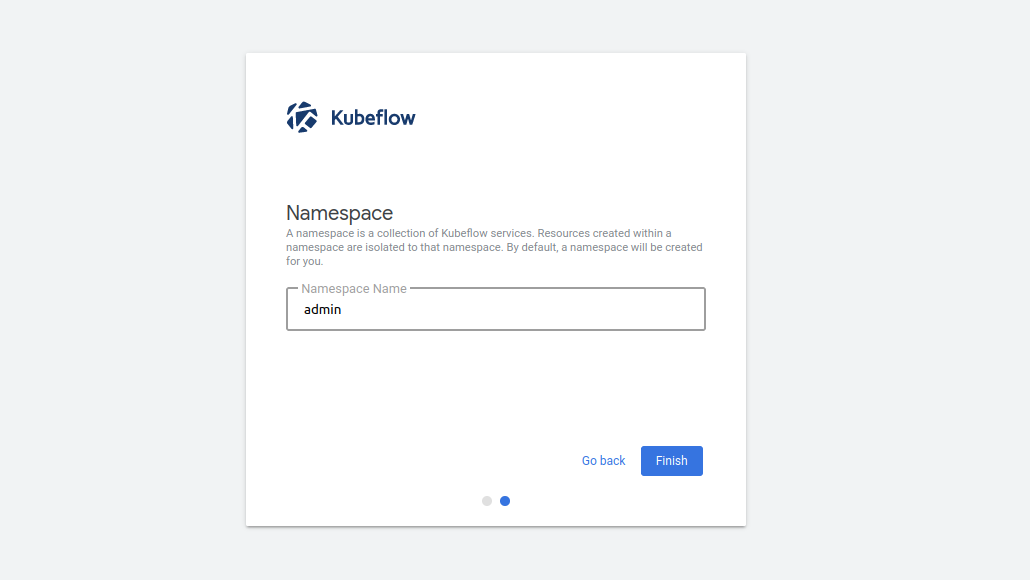
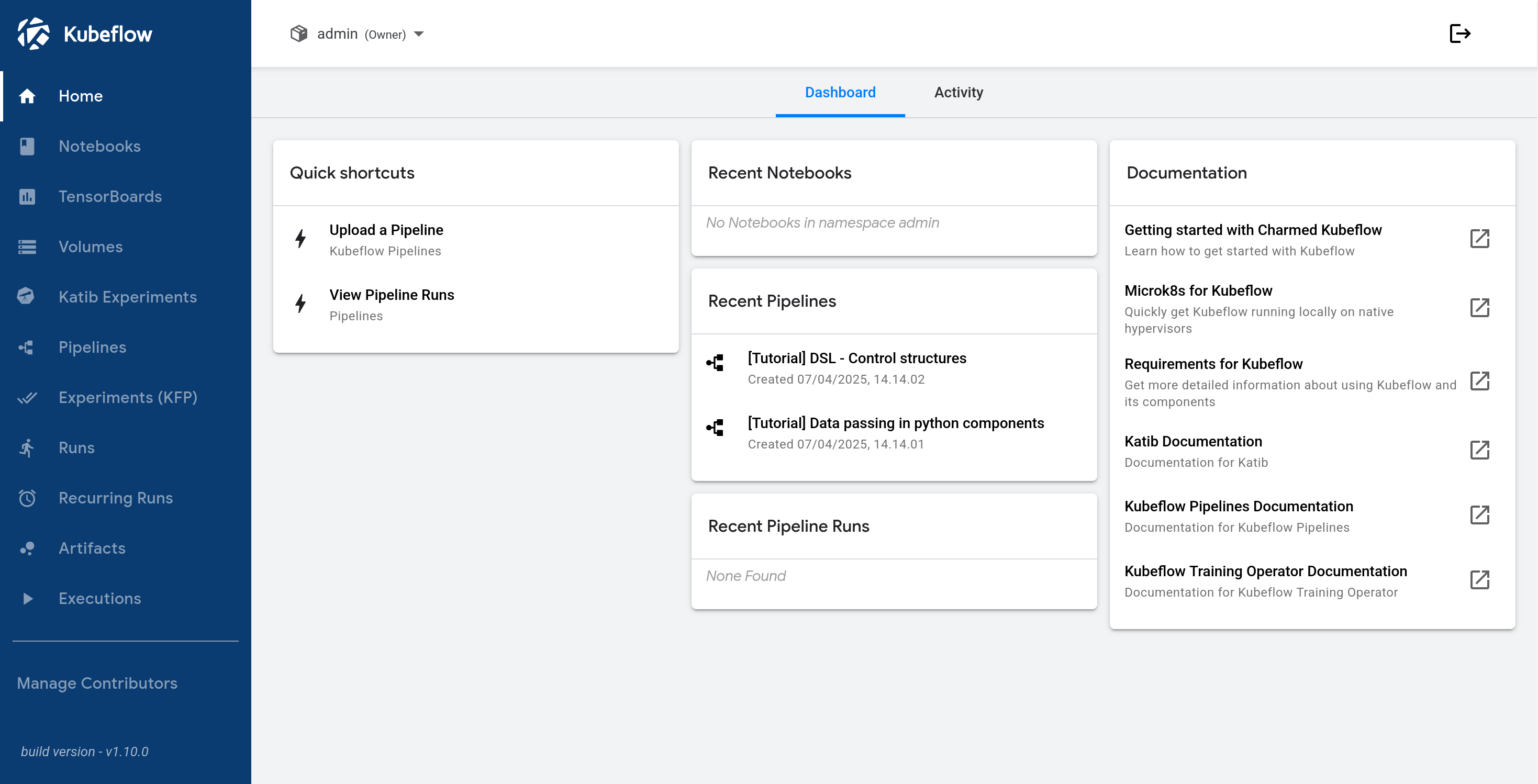
Click on Finish to display the dashboard:
Next steps
Once deployed, build your first ML model on Kubeflow.
To learn about common tasks and use cases, see how-to guides.
To learn about the advantages of using CKF over upstream Kubeflow, see Charmed vs upstream Kubeflow.